

Crisp
Hand off chats from Agenized to Crisp so your team continues the conversation in the Crisp inbox across setup, connection, and per-agent options.
What is Crisp?
Crisp (crisp.chat) is a customer-messaging platform with live chat on your site, a shared team inbox, and tools your support team already uses to talk to visitors and customers.
Why use Crisp with Agenized?
When a shopper should leave the AI and talk to a person, Crisp hand-off sends that thread into your Crisp workspace. Agenized creates a matching conversation in Crisp, carries over the transcript and visitor context, and your team picks it up in the Crisp inbox, the same place you handle other chats.
Use Crisp if your human workflow lives in Crisp and you want escalations to land there without copying and pasting.
Before you start
- A Crisp account with your website set up
- Your Crisp Website ID (UUID). In Crisp, you can usually find it under Settings for your site, or in onboarding flows after you sign in
- Permission in Agenized to manage Settings → Hand-off and Agents → Hand-off
Add a Crisp connection
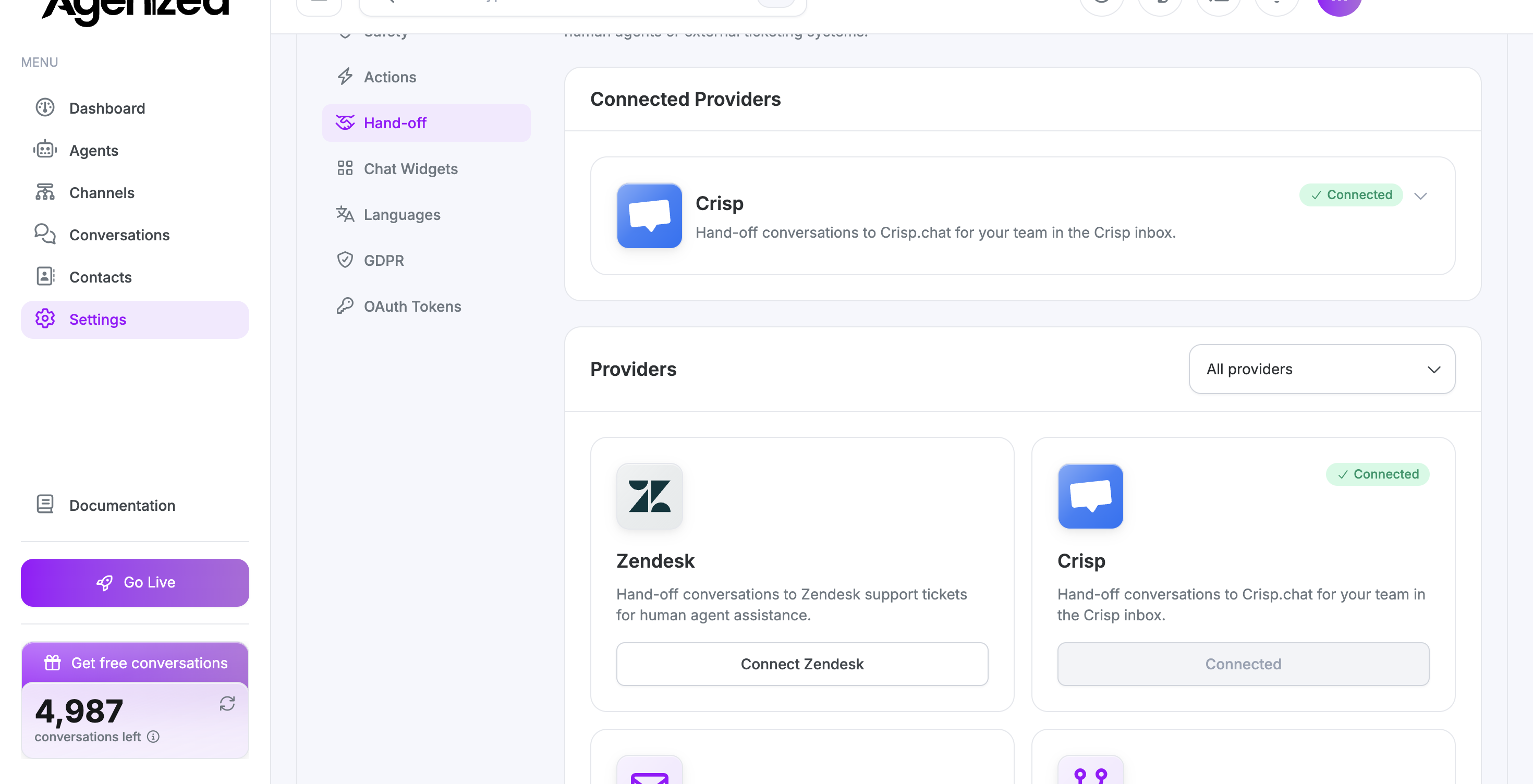
- Open Settings → Hand-off.
- Find Crisp in the list of providers and start adding a connection.
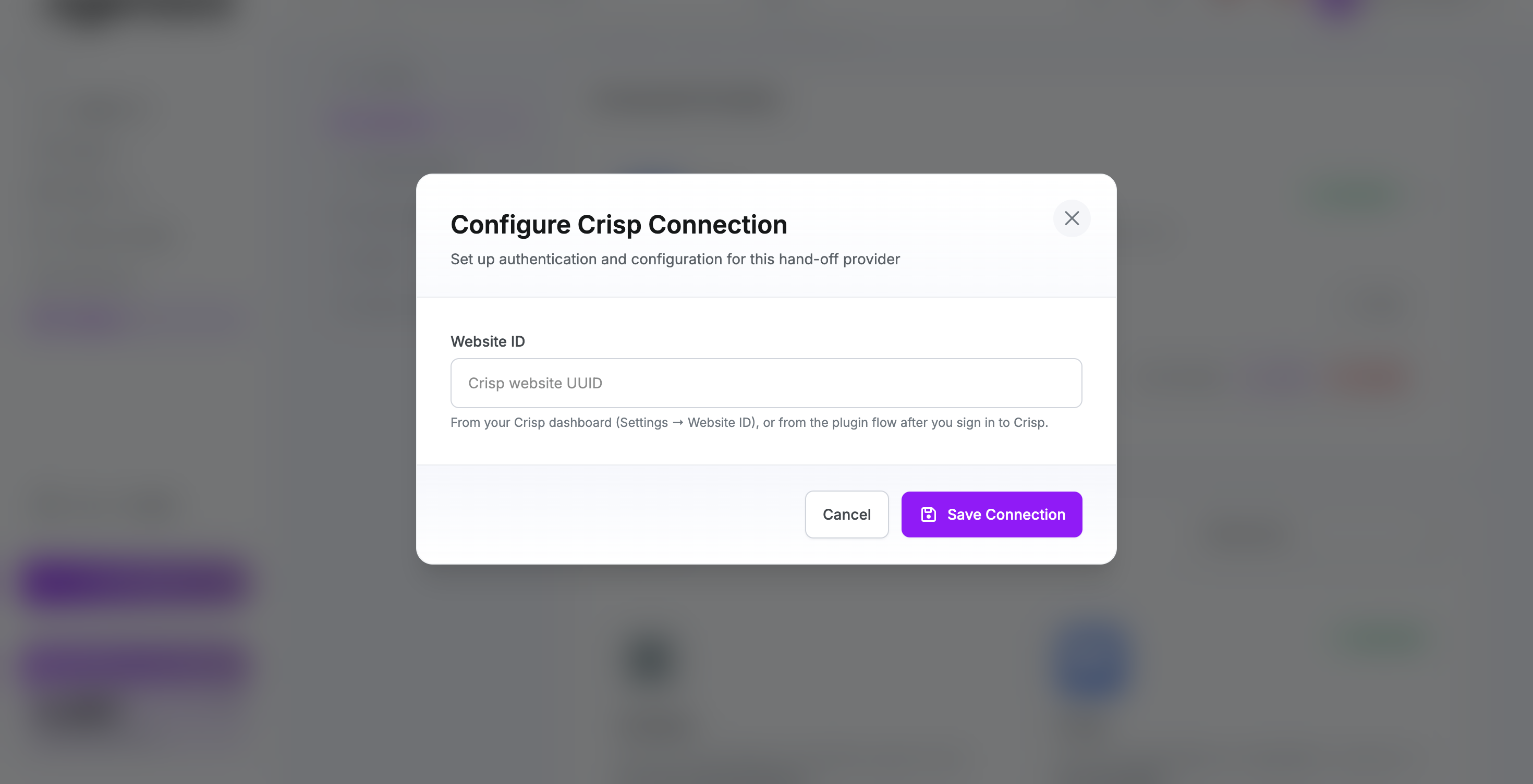
- Enter your Website ID exactly as shown in Crisp (UUID format).
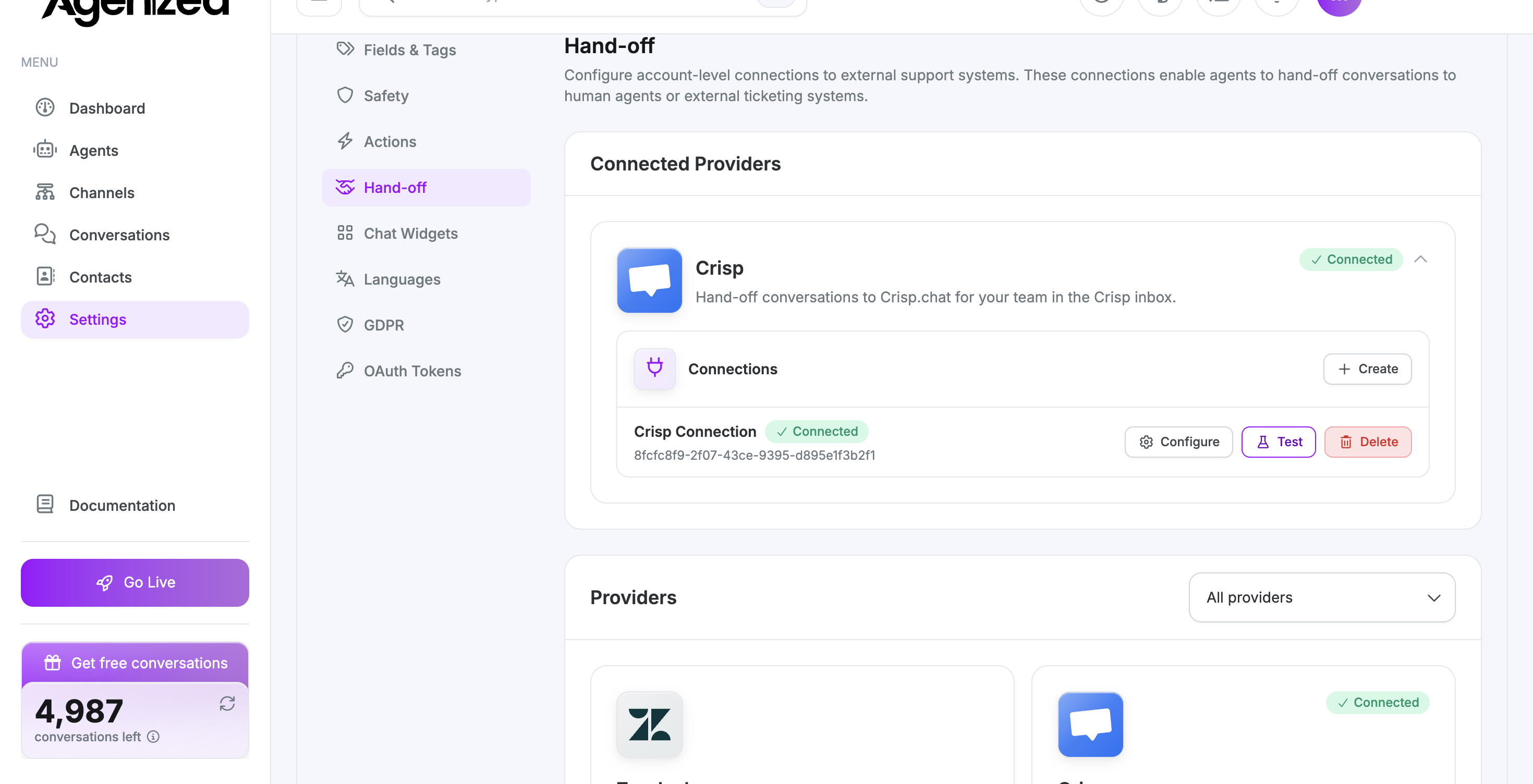
- Use Test to confirm Agenized can reach your Crisp website, then save.
After saving, the connection appears with your other hand-off connections so you can rename, test again, or remove it later.
Attach Crisp to an agent
Hand-off is configured per agent.
- Open the agent, then go to Agents → Hand-off.
- If Crisp is available, add a Crisp hand-off configuration (you need a saved connection from the previous section).
- Turn the configuration on when you are ready for that agent to escalate to Crisp.
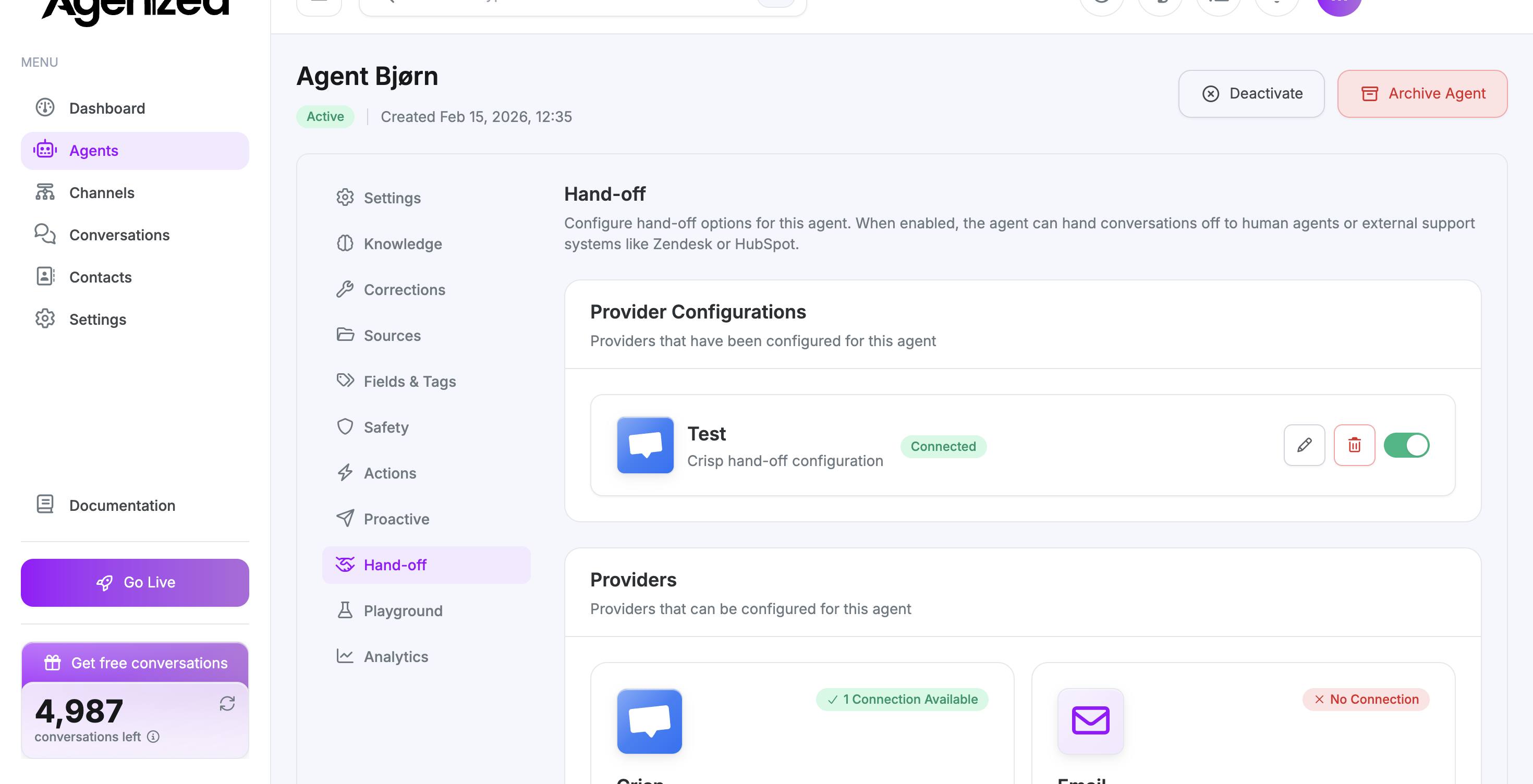
Agent hand-off Crisp settings
Click the edit button on your Crisp configuration to see two areas: Settings and Routing.
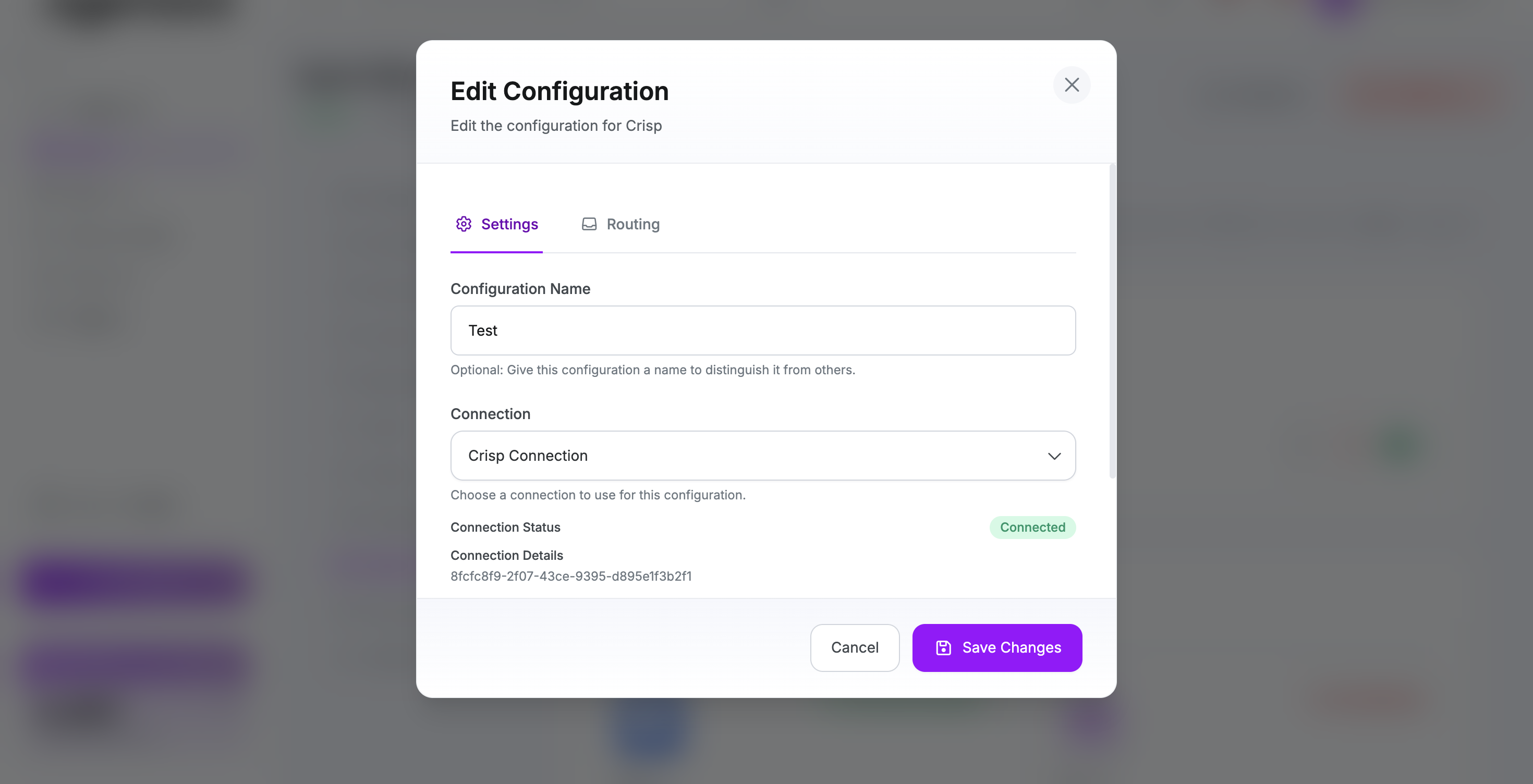
Settings
| Field | Purpose |
|---|---|
| Configuration name | Optional label if you have more than one hand-off setup. |
| Connection | Which Crisp connection this agent uses (your Website ID connection). |
| When should the agent use this hand-off? | Instructions for the AI on when to escalate to Crisp (for example shopper asks for a human, billing disputes, etc.). You can start from the suggested text and edit it. |
Routing
| Field | Purpose |
|---|---|
| Inbox | After the hand-off, route the new Crisp conversation to a specific Crisp inbox, or leave None to use your default inbox behavior in Crisp. |
| Assignee | Optionally assign the conversation to a specific team member in Crisp. |
| Subject source | Controls how the conversation title in Crisp is built from Agenized data. The product suggests a default path based on your conversation subject; you can adjust it if you use custom conversation fields and want a different title. |
Lists for Inbox and Assignee load from your Crisp workspace when you open Routing.
What happens when hand-off runs
- A new conversation is opened in Crisp for your website.
- Visitor details and tags from Agenized are reflected in Crisp (tags are shown with readable labels, e.g.
pre_salesappears in a friendlier form). - The message history is replayed into Crisp so your team sees the full context.
- If you set Inbox or Assignee, those are applied after the transcript is sent.
Exact layout inside Crisp may vary with your Crisp plan and layout.
Try it end-to-end
Use Playground (or a test channel) with an agent that has Crisp hand-off enabled. Trigger a scenario that matches your instructions (for example, ask to speak with a person) and confirm the thread appears in Crisp as expected.
See also Hand-off overview.